Appearance
Supported Data Types
Text Fields
Text fields are displayed for all CHAR and VARCHAR columns.

Text Areas
A text area allows users to enter text over multiple lines. The minimum and maximum number of rows can be defined in the Form Builder. A maximum width that is less than the actual column length can also be defined there. Text areas are displayed for columns containing one of the following data types:
TINYTEXTTEXTMEDIUMTEXTLONGTEXT
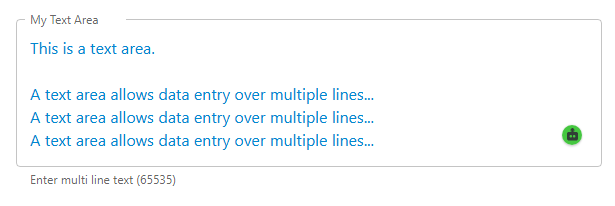
Settings for the text area shown in the example:
- Minimum lines = 5
- Maximum lines = 10
- Maximum length = 65535
- AI support is automatically enabled if available
Numeric Fields
Numeric fields allow users to enter numeric values only. The following data types are supported:
DECIMALDOUBLEDOUBLE PRECISIONFLOATREALBITTINYINT– exceptTINYINT(1), which represents a checkboxSMALLINTINTINTEGERMEDIUMINTBIGINT
The number of decimals supported in a numeric field depends on the actual data type defined for the associated table column. Enable localization to display thousand separators. The language setting of the app is used for localization.

Settings for the numeric field shown in the example:
- Data type =
DECIMAL(7,2) - Localization = enabled
Date and Time Fields
Date and time fields allow users to enter dates and times using date and time pickers. These pickers are accessible via the calendar and time icon buttons shown in the field. The language setting of the app is used for localization.
Date
Shows the date without the time.

DateTime
Shows the date and time.

TimeStamp
Similar to DateTime.

Time
Shows the time.

Checkboxes
Checkboxes are shown for all column having data type TINYINT(1).

Drop-Down Lists
Drop-down lists are supported for the following fields and data types:
- lookup fields
ENUMSET- multi-select
Lookups
Drop-down lists are automatically generated for lookups.
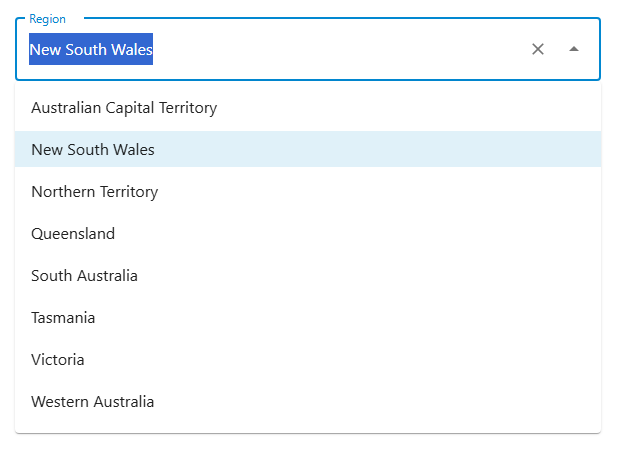
📌 Lookup fields support auto-completion by design.
📌 Use the Lookup Conditions section to filter the lookup list.
Dynamic Lookups
A dynamic lookup depends on other form values. A reference to other form values can be defined in Lookup Conditions under Dynamic Conditions, as shown in the screenshot below.
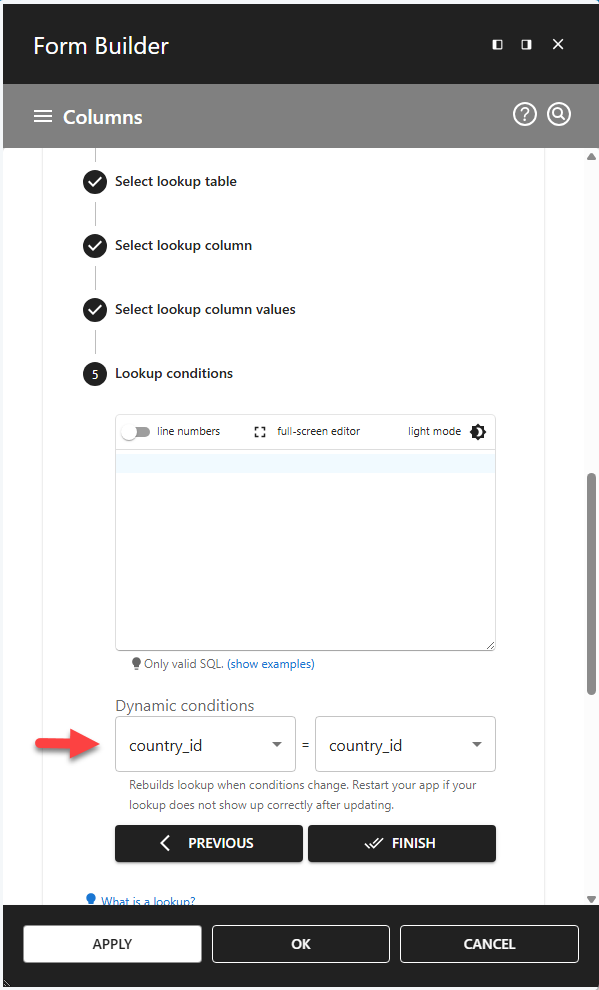
The configuration above:
- Allows only lookup values for which
country_idequals the currentcountry_idin the form. - When
country_idis cleared or changed, the region is cleared to enforce valid new user input.
📌 The default WHERE clause, defined above the dynamic conditions, has no effect on actual form values. It is executed server-side and supports only static filtering on the lookup table itself. It can be used to filter out specific values.
Single Select Drop-Down Lists
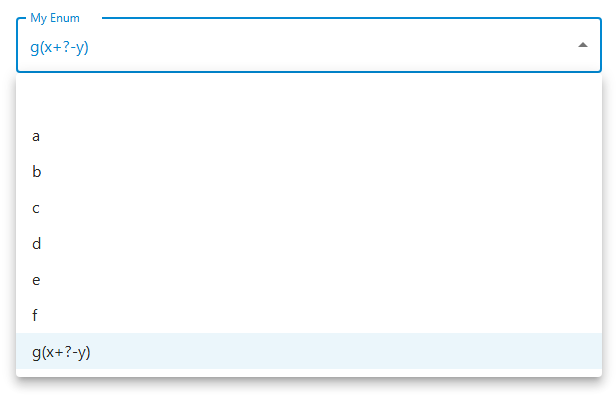
Single-select drop-down lists are automatically generated for table columns with the ENUM data type.
The drop-down lists shown below are generated for the column:
sql
`my_enum` enum('a','b','c','d','e','f','g(x+?-y)') DEFAULT NULL
Multi Select Drop-Down Lists
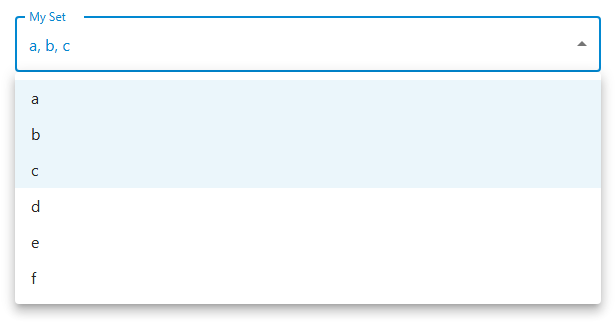
Multi-select drop-down lists are automatically generated for table columns with the SET data type.
The drop-down lists shown below are generated for the column:
sql
`my_set` set('a','b','c','d','e','f') DEFAULT NULL
Media Fields
The following media types are supported:
- HyperlinkObject
- HyperlinkURL
- ImageURL
- Secure-Document
- WP-Image
- WP-Attachment
- WP-Audio
- WP-Video
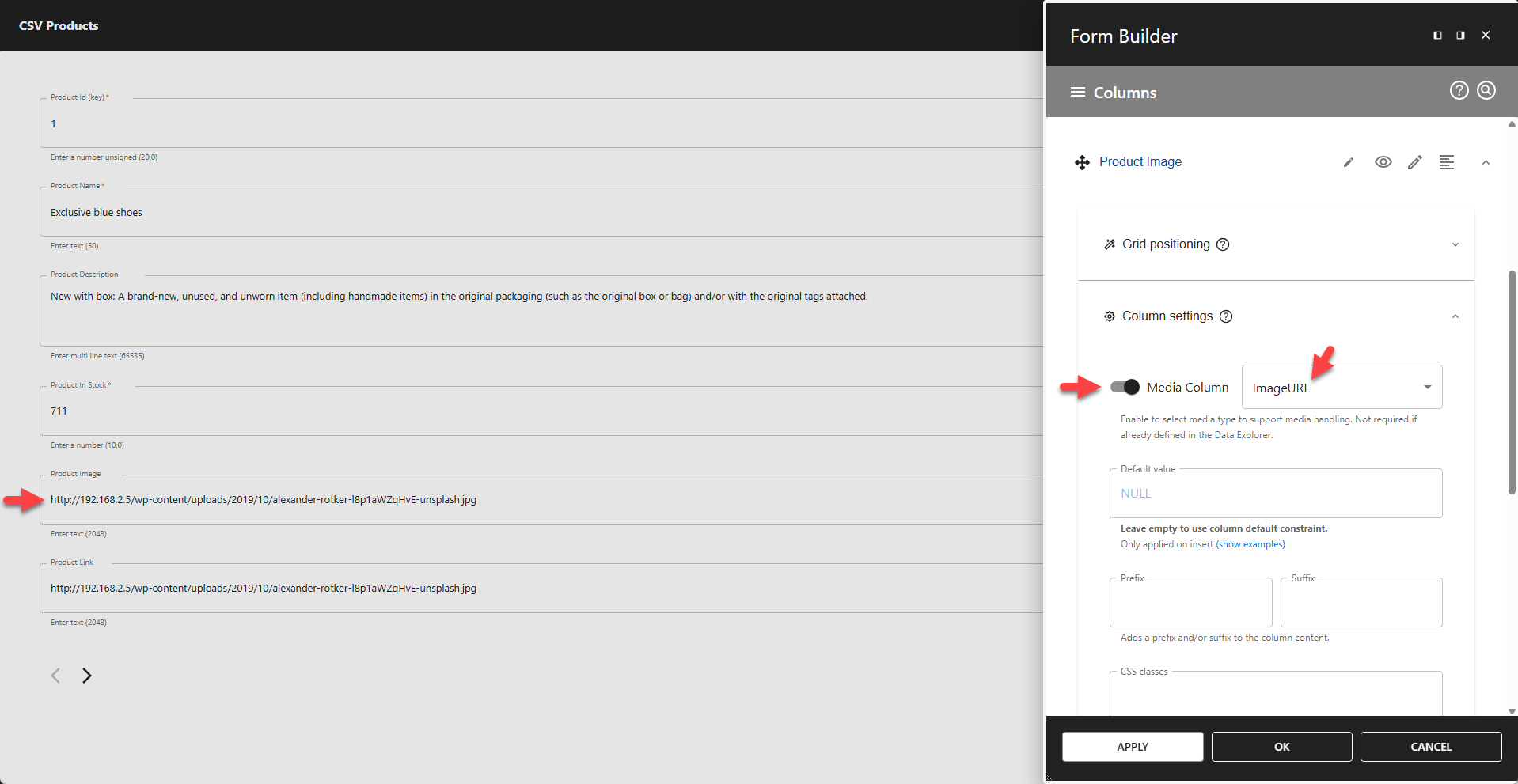
The media option must be enabled for a media column in the Form Builder (or in the Table Builder to add media to a data table). Once enabled, the available media types will be available from a drop-down list.
📌 Make sure you understand the media type requirements before using them in production.
Public URLs
Public URLs can be stored using the following media types:
- HyperlinkObject
- HyperlinkURL
- ImageURL
HyperlinkObject
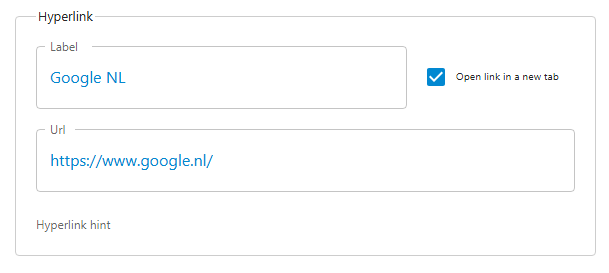
Use this media type to store a static URL for a hyperlink with a custom title and target. The data is stored in JSON format.
- The column data type must be
CHARorVARCHAR. - The column length must be long enough to store the full URL.
- Hyperlinks can be added in a data entry form in edit mode. In view mode, a hyperlink is added to the form.
HyperlinkURL
Use this media type to store a static URL for a hyperlink.

- The column data type must be
CHARorVARCHAR. - The column length must be long enough to store the full URL.
- Hyperlinks are opened in a new tab.
- Hyperlinks can be added in a data entry form in edit mode. In view mode, a hyperlink is added to the form.
ImageURL
Use this media type to store a static image URL.

- The column data type must be
CHARorVARCHAR. - The column length must be long enough to store the full URL.
- Images can be added in a data entry form in edit mode. In view mode, an
element is added to the form.
WordPress Media Library
Use these media types to integrate the WordPress Media Library:
- WP-Image
- WP-Attachment
- WP-Audio
- WP-Video
📌 Data entry for WordPress Media Library columns is supported only for logged-in users. Anonymous users cannot update media files.
WP-Image
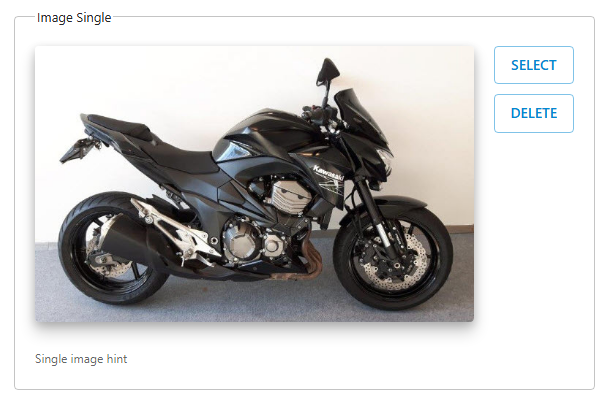
Image columns can only store images from your WordPress Media Library. elements are generated for this type of media in data tables.
Single WP-Image Storage
Multiple WP-Images Storage
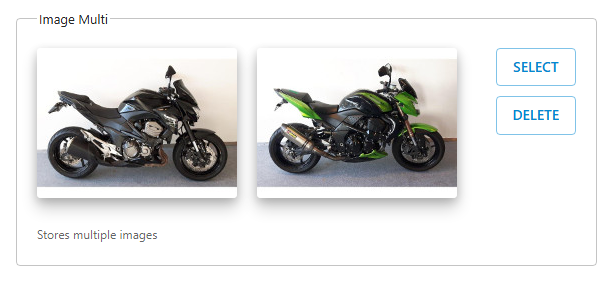
- Images can be added in a data entry form in edit mode.
- In data tables and form view mode, an
element is added to the form.
WP-Attachment
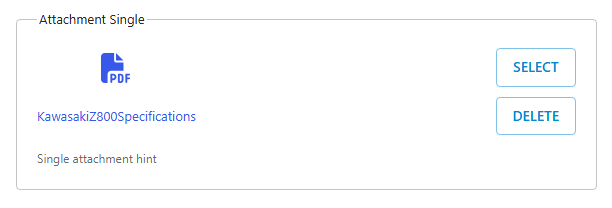
Attachment columns can store any media from your WordPress Media Library. In a data table, an attachment is shown as a link to the associated file.
Single WP-Attachment Storage
Multiple WP-Attachment Storage
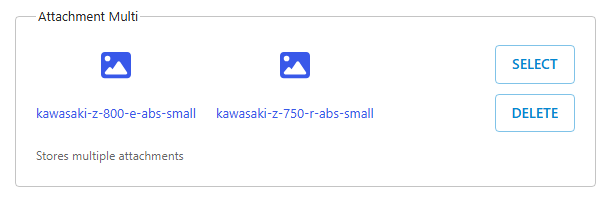
- Attachments can be added in a data entry form in edit mode.
- In data tables and form view mode, the attachment is shown as a hyperlink.
WP-Audio
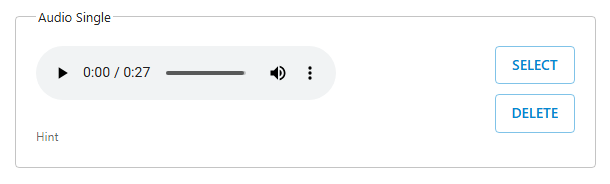
Audio columns can only store audio from your WordPress Media Library. In a data table, an audio shortcode is added for this type of media.
Single WP-Audio Storage
Multiple WP-Audio Storage
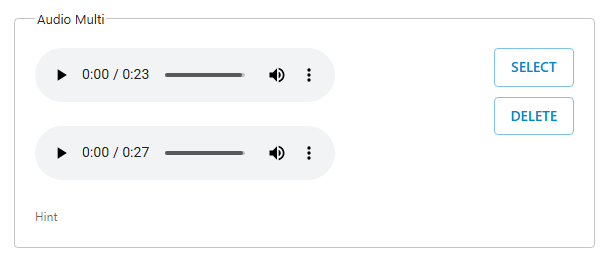
- Audio can be added in a data entry form in edit mode.
- In data tables and form view mode, an audio shortcode is added to the form.
WP-Video
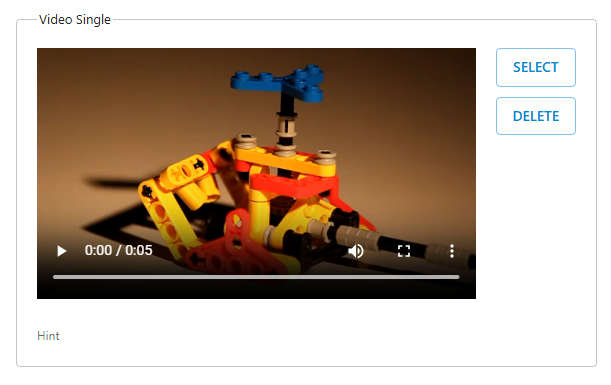
Video columns can only store video from your WordPress Media Library. In a data table, a video shortcode is added for this type of media.
Single WP-Video Storage
Multiple WP-Video Storage
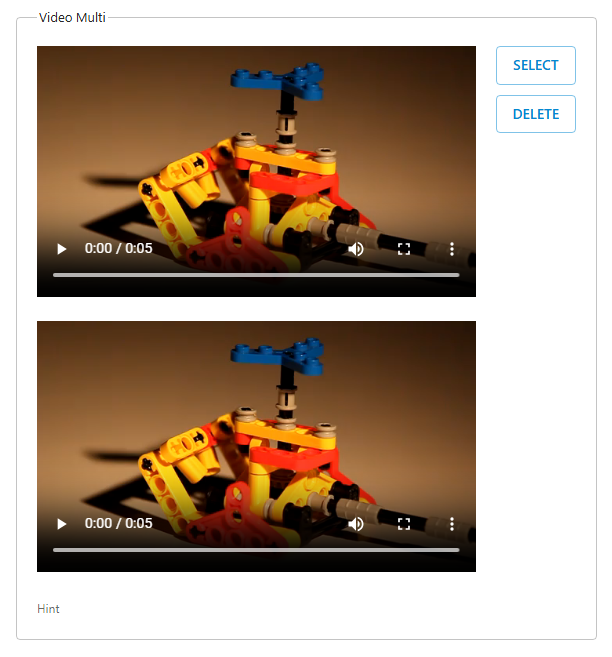
- Video can be added in a data entry form in edit mode.
- In data tables and form view mode, a video shortcode is added to the form.
General Requirements
WordPress Media Library integration is supported in two formats:
- Use a
NUMBERcolumn to store a single media reference. - Use a
VARCHARcolumn to store multiple media references.
Single media columns can only save one media ID. Multiple media columns can save as many media IDs as you like. The width of your VARCHAR column determines the maximum number of IDs that can be stored. Make sure your column is wide enough.
Data Type Examples
bike_photo bigint(20) unsignedstores one image, attachment, audio, or video reference.bike_attachments varchar(200)stores multiple images, attachments, audio, and video references.
📌 Data entry for media columns is only available within the WordPress dashboard.
Secure Documents
Secure documents can be used to authorize file access to specific users only.
Files stored in the WordPress Media Library and on public URLs are accessible to anyone with internet access. Secure documents are stored in BLOB columns and cannot be accessed directly via a URL. Users must have the appropriate authorization to view or download these documents.
The following data types are supported:
BLOB– can store files up to approximately 35 KBMEDIUMBLOB– can store files up to approximately 9 MBLONGBLOB– can store files up to approximately 2.2 GB
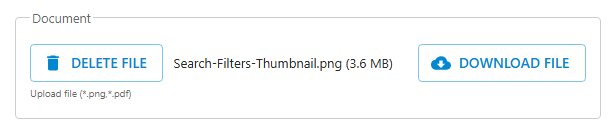
📌 File uploads are performed when the user presses the APPLY or OK button.
📌 PHP upload settings can affect the upload file size limit.
📌 A download button can be added to the table (must be enabled in the Table Builder).
MIME Types
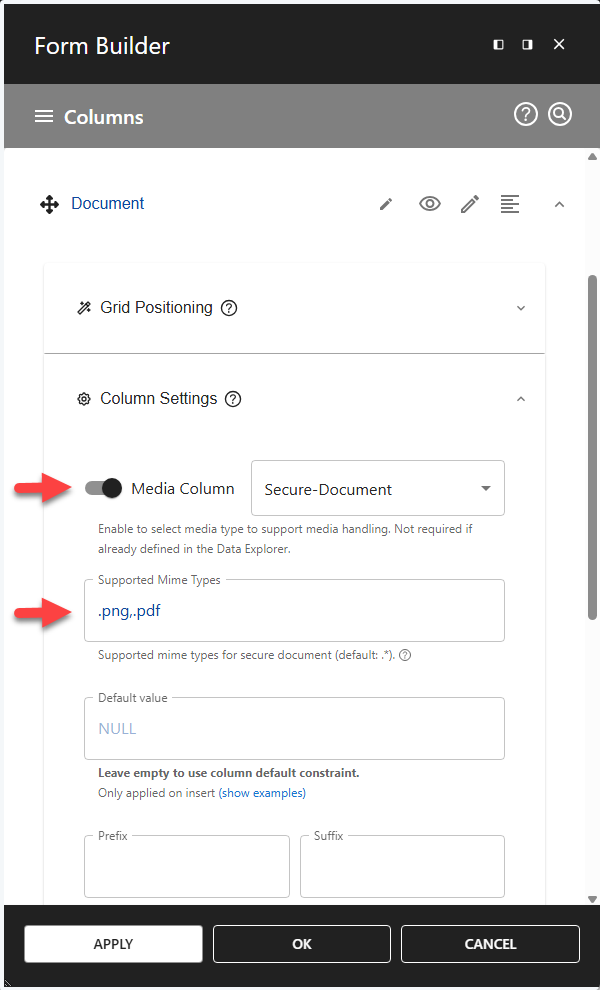
MIME types can be defined per BLOB column, as shown below:
Binary Fields
Binary data cannot be displayed or edited in forms. Secure documents (BLOB, MEDIUMBLOB, and LONGBLOB) are the only exception.

Field Configuration Settings
The following column settings are available for fine-tuning:
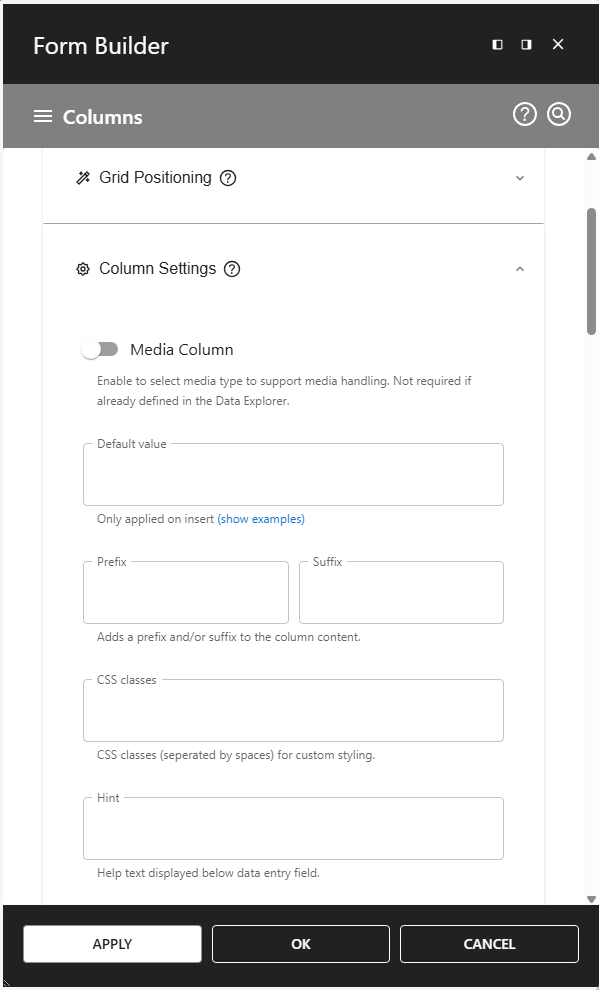
- Custom hints – shown below data entry fields in edit mode (hidden in view mode)
- Prefix
- Suffix
- CSS classes – the column name is added as a CSS class by default
- Default value - here is an example adding dynamic default values