Appearance
Configuration
The following widget types are supported:
- Apps
- JavaScript widgets
- HTML widgets
Apps
The easiest way to add a widget is to select an app from your repository.
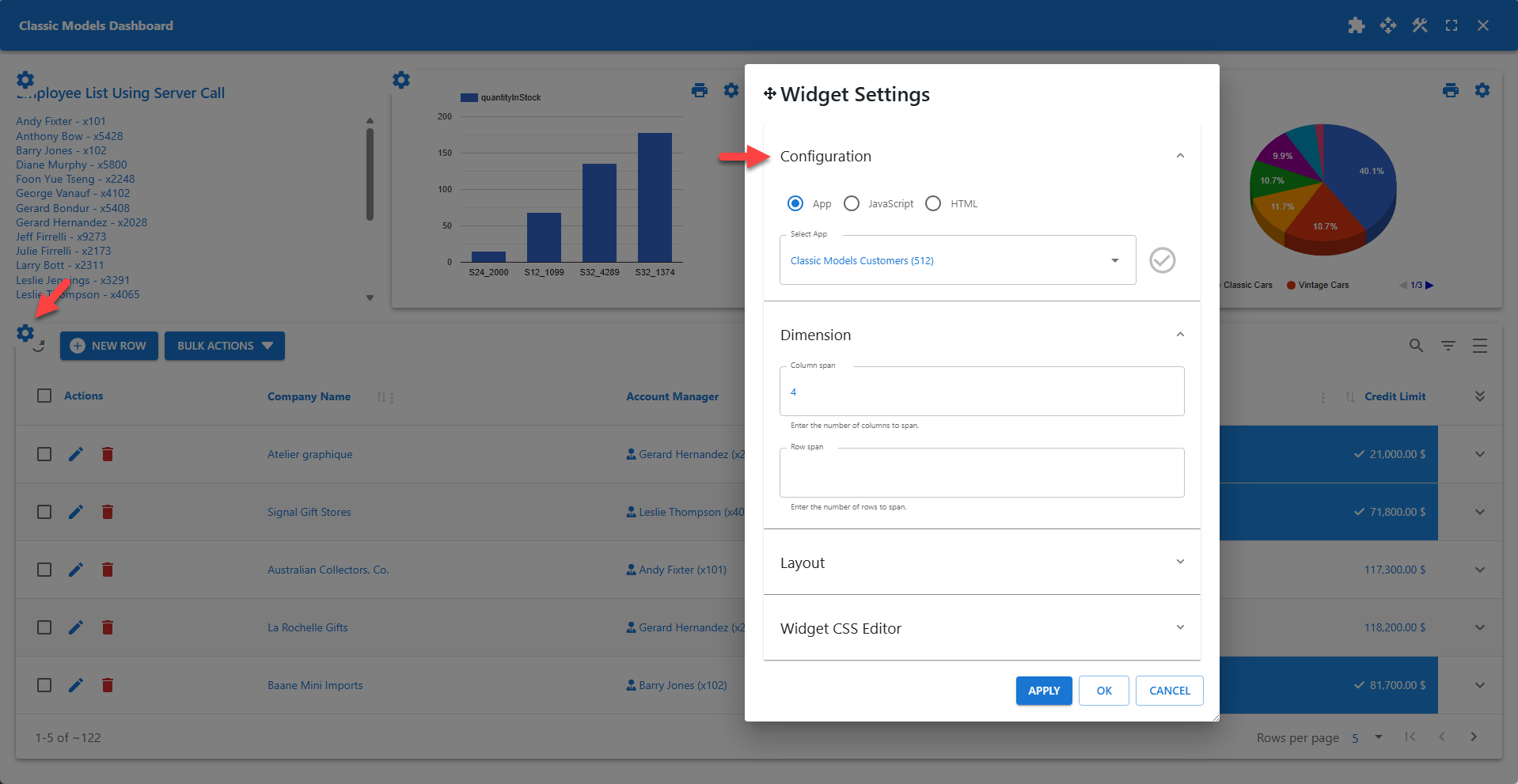
Apps are automatically sized to fit the available space. The Dimension section can be used to make the widget span multiple cells and rows. The example above shows a data table app spanning four columns.
The builder icons are available in the app toolbar by default, allowing administrators to configure apps from the dashboard. The app's full-screen functionality is also available from the toolbar. Disabling widget toolbars will remove these functionalities from the widgets.
JavaScript Widgets
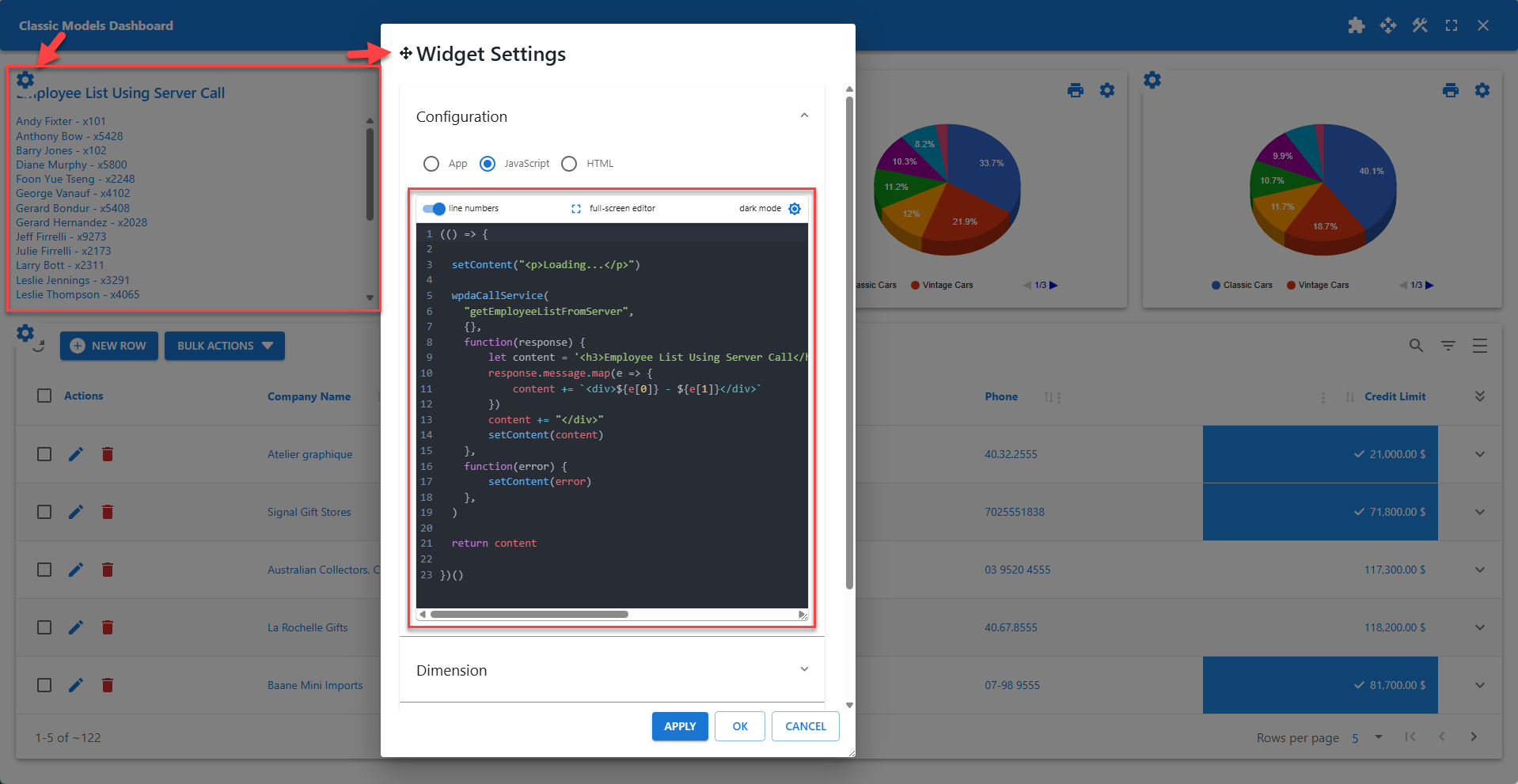
A JavaScript widget allows administrators to add custom dynamic content to a dashboard.
JavaScript widgets are executed locally in the user's browser. These widgets can also execute server-side PHP code and process the responses, using the JavaScript built-in function wpdaCallService. The JavaScript widget shown in the screenshot calls the PHP function getEmployeeListFromServer and processes the result. The PHP function called from the JavaScript widget must be authorized in the App Manager.
Built-in wpdaCallService
Function wpdaCallService was specifically designed for dashboards. It has the same parameters and functionality as built-in wpda.callService. Please check the documentation for wpda.callService for more information.
📌 Use wpdaCallService instead of wpda.callService for dashboards.
📌 Each PHP function called from a JavaScript widget must be authorized in the App Manager.
HTML Widgets
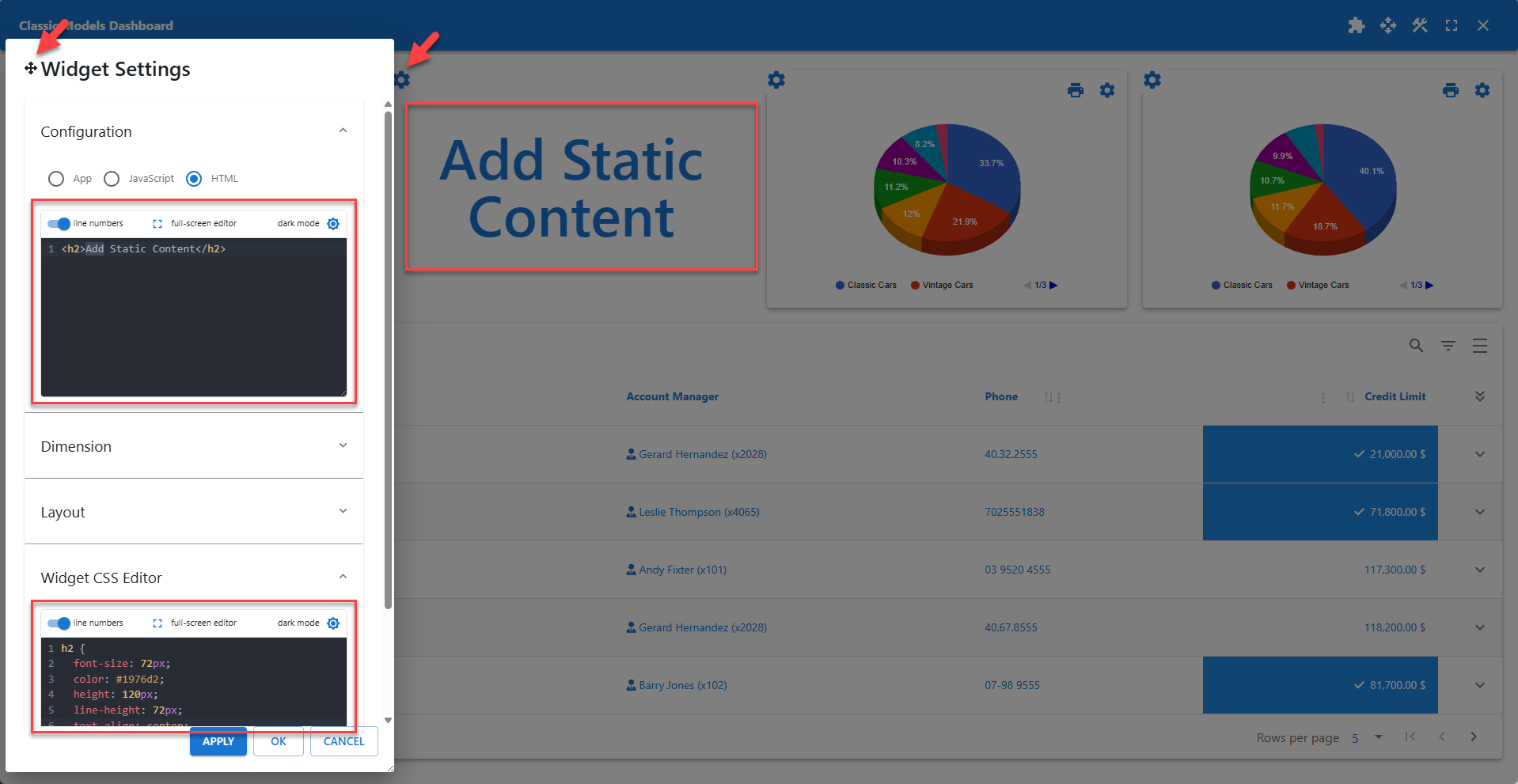
An HTML widget allows administrators to add custom static content to a dashboard.
Although the example shown in the screenshot is quite simple, it demonstrates how to combine static HTML and custom CSS. The Widget CSS Editor supports scoped child element styling. This ensures that CSS rules are applied only to the widget container and its child elements.