
Appearance
Lookup
Lookups replace codes and IDs with meaningful values from a lookup table. A lookup must return a single, unique value. When defined in forms, a lookup replaces a standard data entry field with a drop-down list of all possible values.
Base Table
The base table is the table queried by the application. In this example, we'll use the tutorial_emp table.
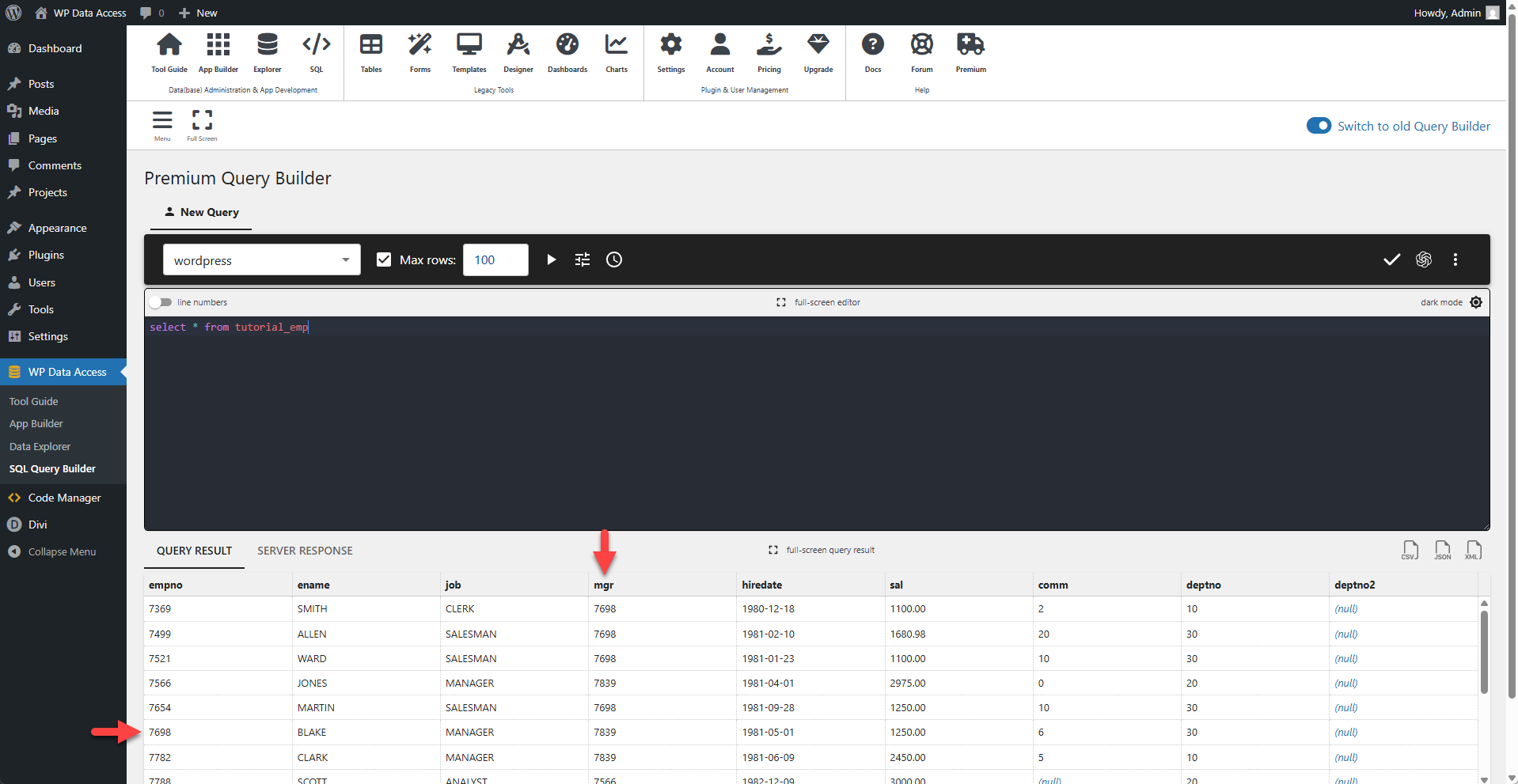
The screenshot below shows raw data from the tutorial_emp table returned by the SQL Query Builder. This table contains a mgr column, which stores the manager's employee number. Without a lookup, an app user would only see this number, which is not meaningful on its own.
Lookup Table
In this example, the tutorial_emp table also serves as the lookup table. It contains an employee number (empno) and a corresponding employee name (ename) for each employee. The lookup will use this table to replace the manager's employee number with the manager's name.
> A lookup example using different base and lookup tables is available here.
⚙️ Creating Lookups
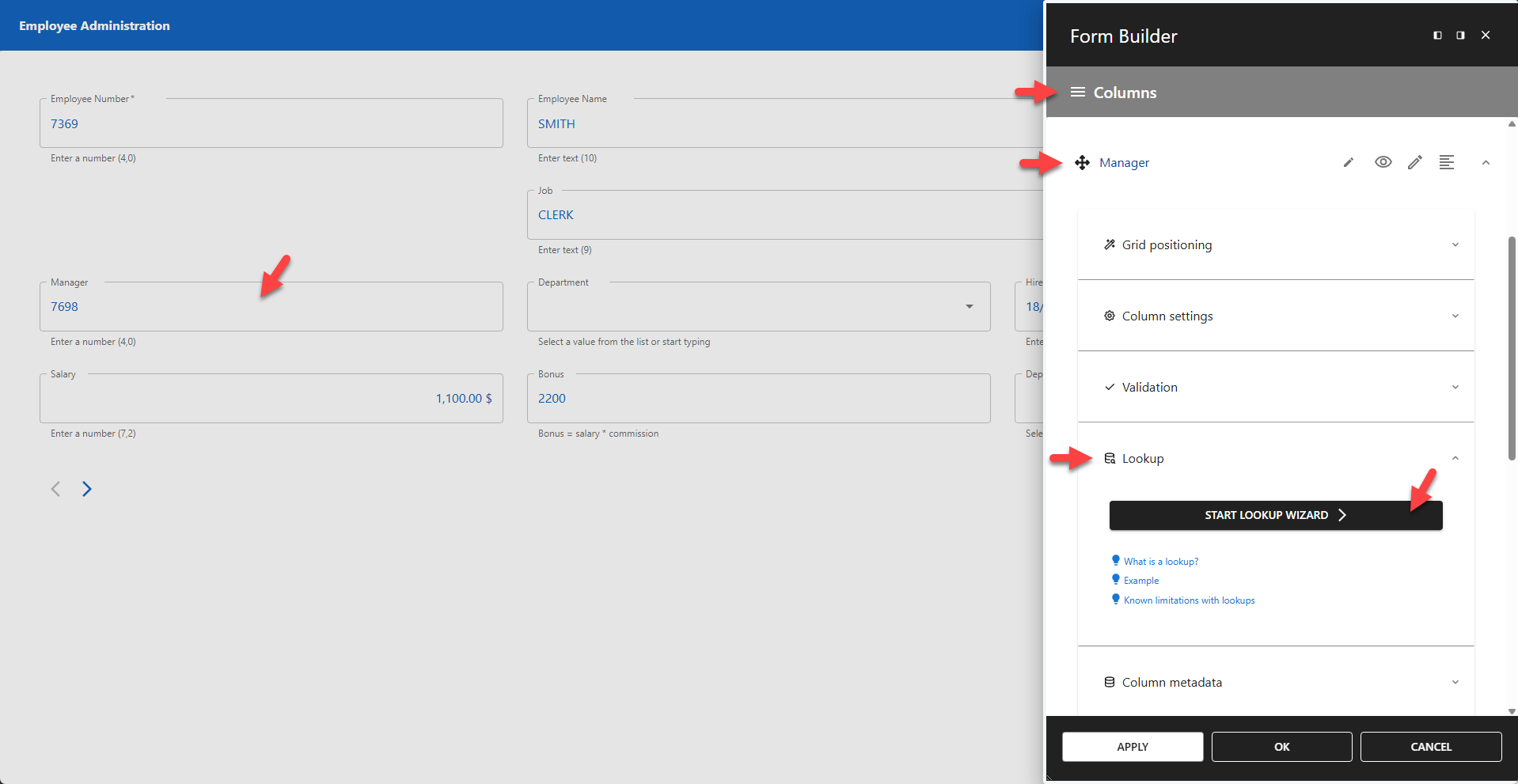
The screenshot below shows the mgr column from the tutorial_emp table. The column label has been changed to Manager. No lookup is defined yet, so the raw employee/manager number is displayed.
Click the START LOOKUP WIZARD button to create a lookup for the mgr column.
1 - Select Database
Select the database where your lookup table is stored.
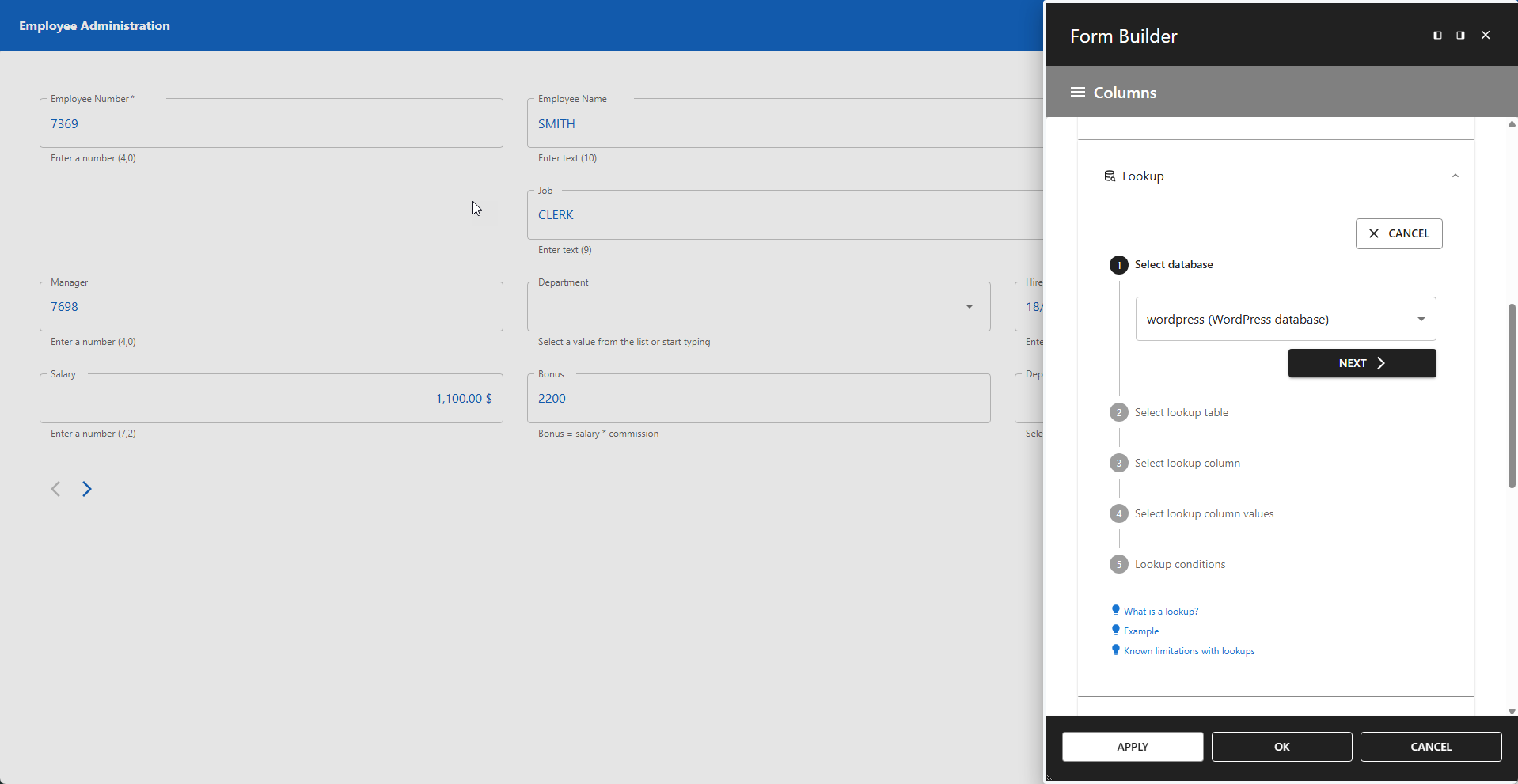
📌 The lookup table does not need to be in the same database as the base table.
2 - Select Lookup Table
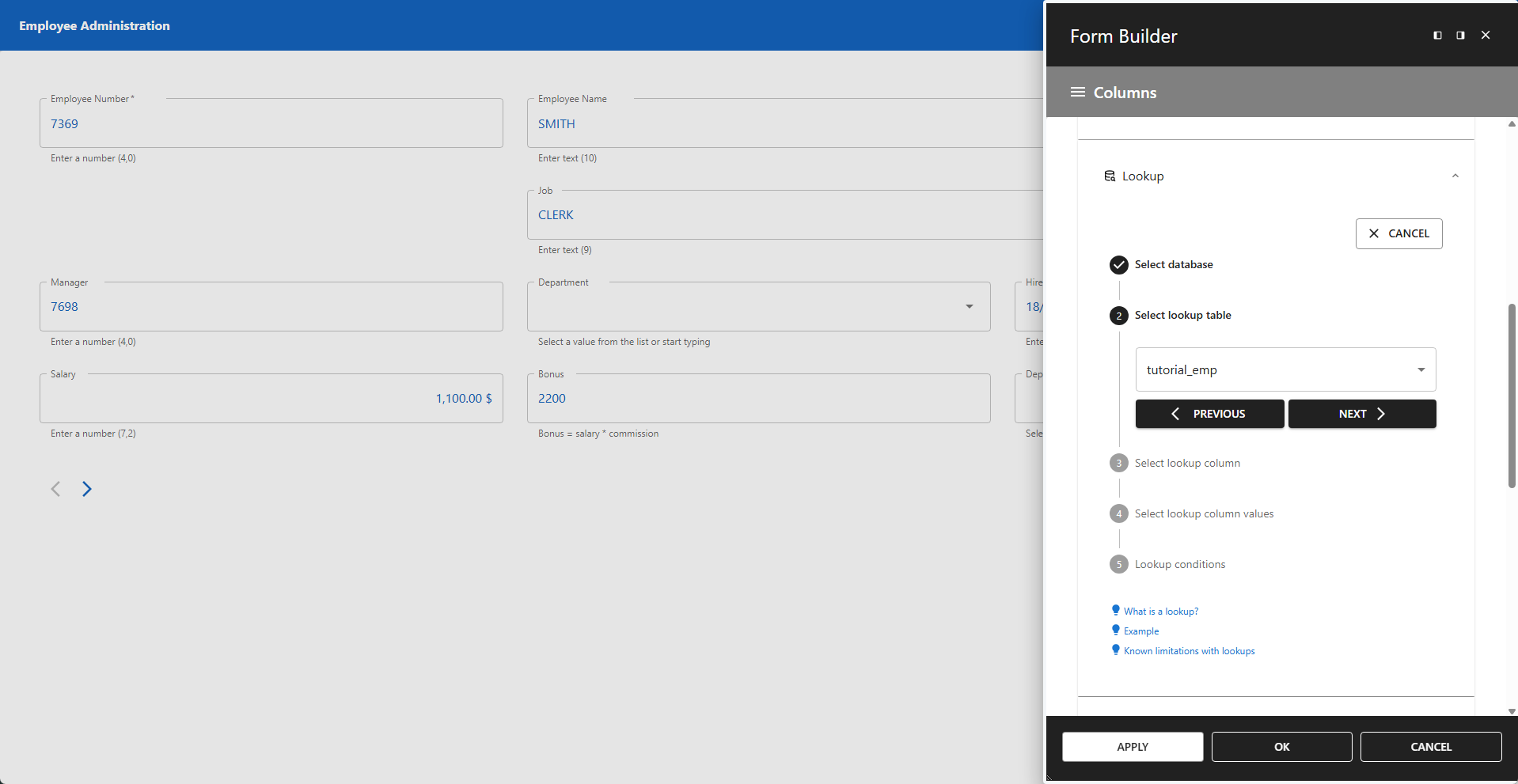
Select the lookup table. In our example, this is the tutorial_emp table.
3 - Select Lookup Column
Select the column in the lookup table that corresponds to the column in the base table you are replacing.
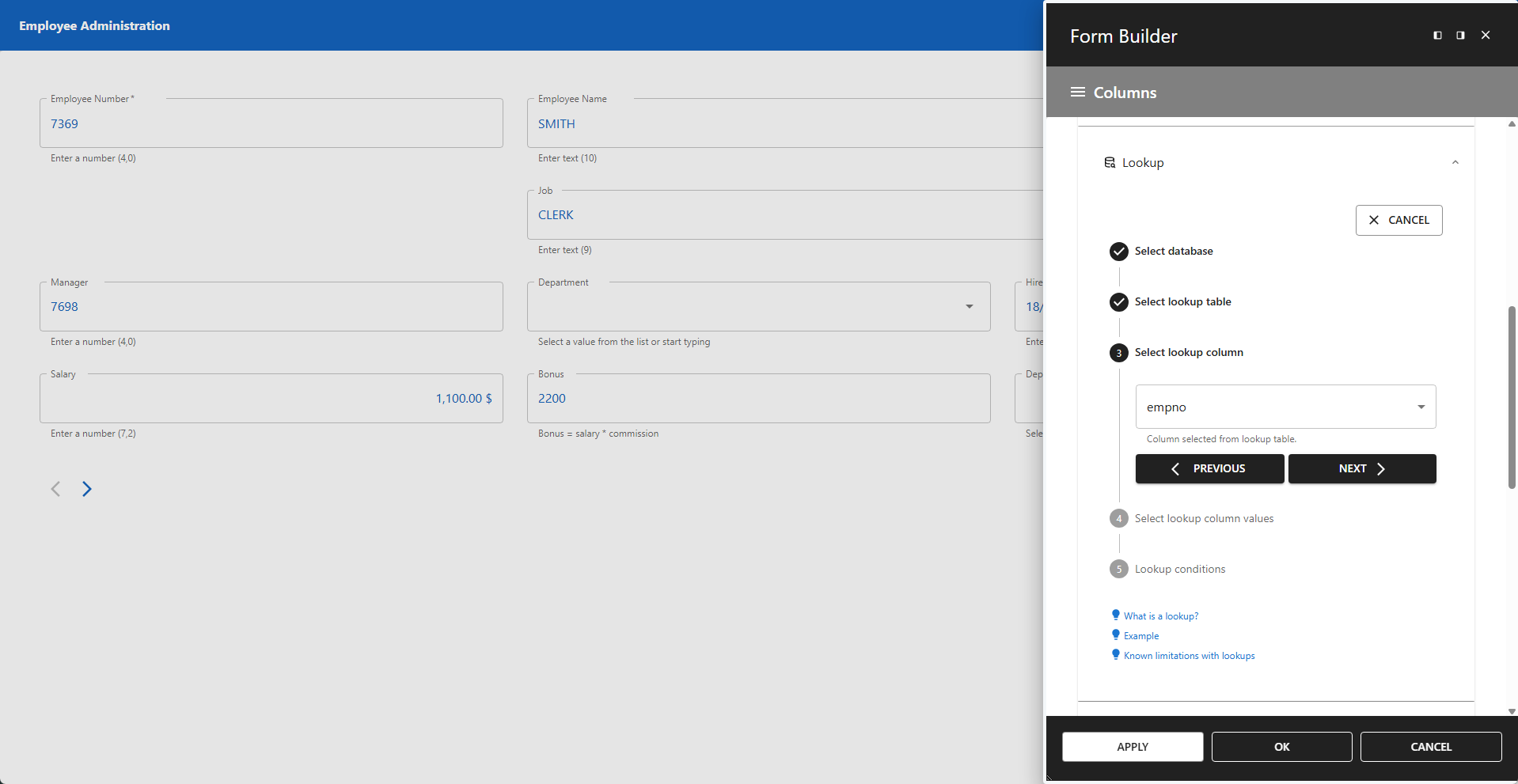
📌 In this example, the empno column from tutorial_emp corresponds to the mgr column from the same table, as a manager is also an employee.
4 - Select Lookup Column Values
Select the column value(s) you want to display. You can choose more than one column. Use the column delimiter field to define a separator between values.
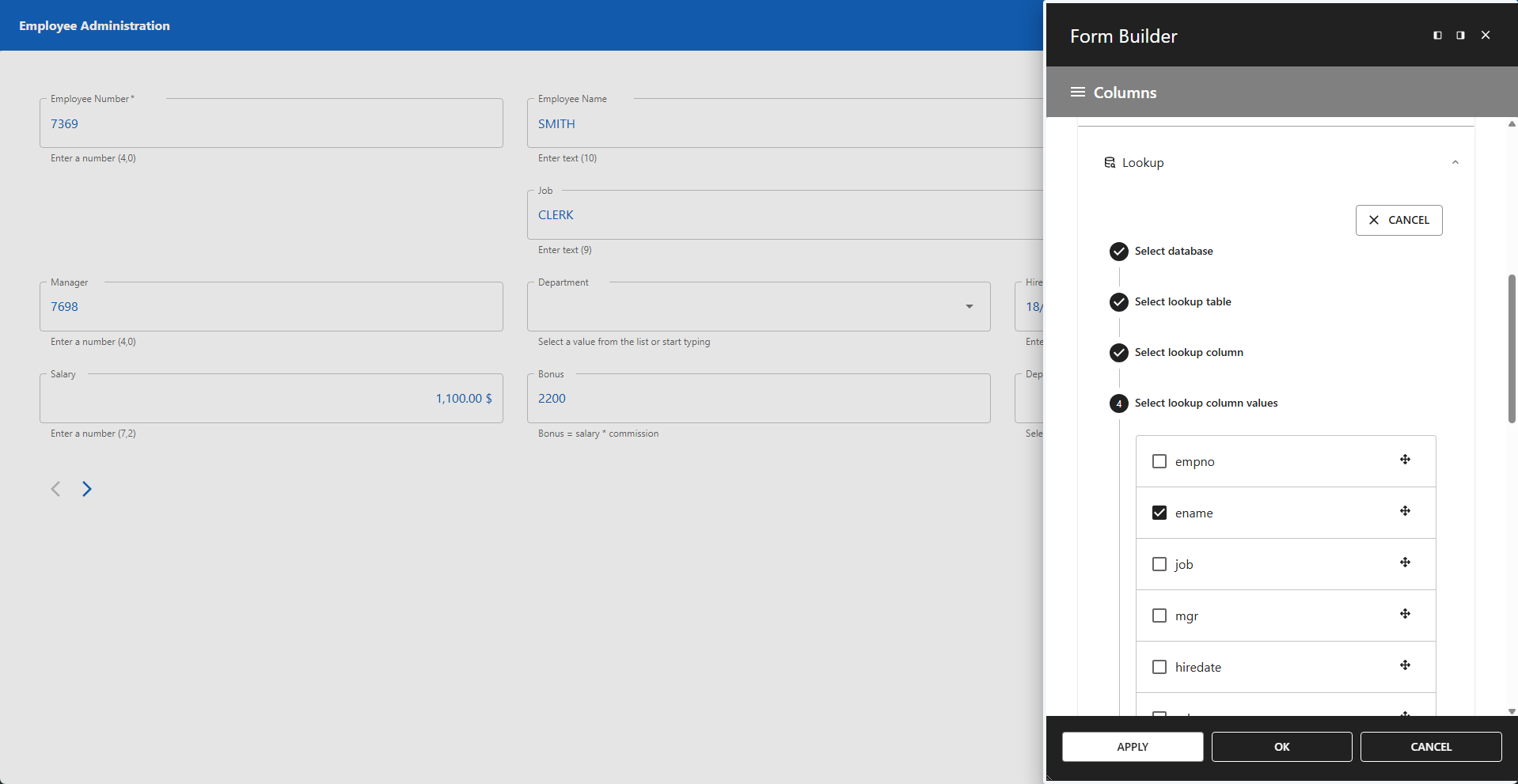
📌 In this example, the ename column is selected, which represents the employee name.
5 - Lookup Conditions
Add any additional conditions to filter the lookup results. This is useful if you store multiple types of lookups in a single table.
5.1 WHERE Clause
You can add a WHERE clause to limit the rows returned.
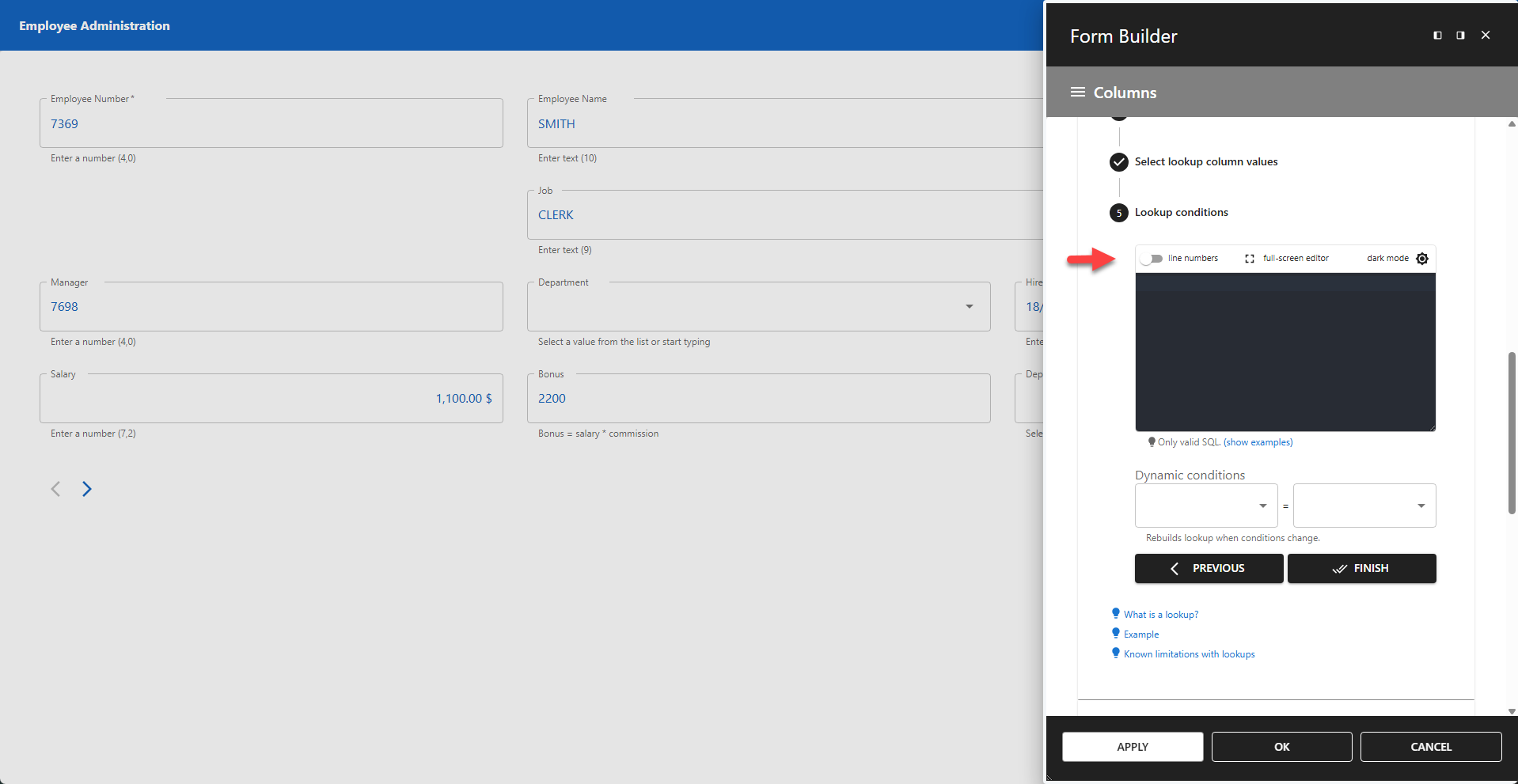
5.2 Dynamic Conditions
Dynamic conditions allow lookups to update interactively based on user input. Each dynamic condition contains two fields:
- The first field references your lookup table.
- The second field references a form field.
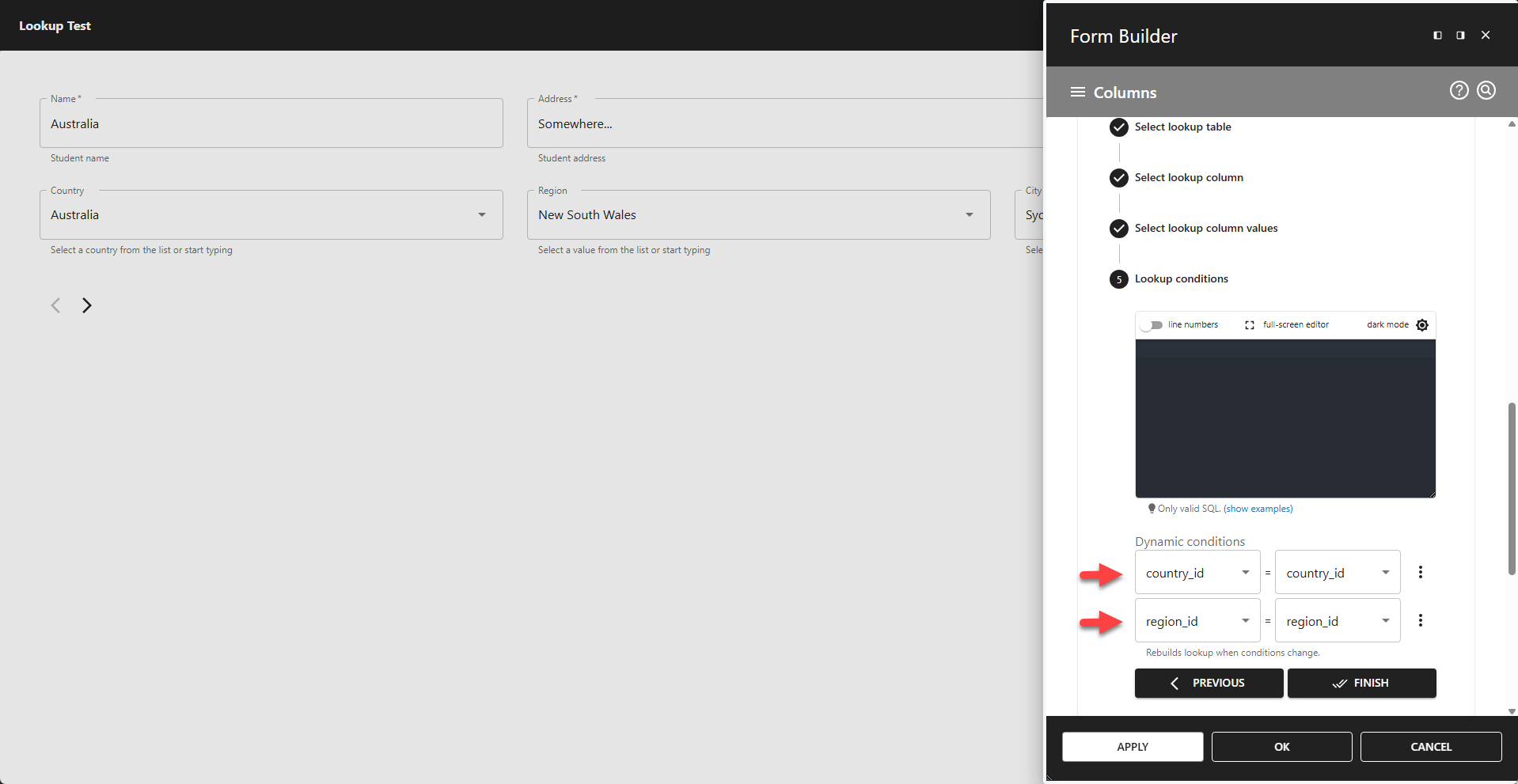
When a form field is changed, the corresponding lookup automatically resets, prompting the user to enter a new value. If you have multiple dependent lookups, all of them will reset when a change is made.
✨ Dynamic Conditions Example
Example showing a city lookup that depends on both country and region. If the user changes the country or region, the city field resets.
5.3 ORDER BY
Lookups are automatically ordered. To change the default order, add ORDER BY to the WHERE clause.
✨ ORDER BY Example
sql
where 1 = 1
order by deptno desc
IMPORTANT
📌 A WHERE clause must start with WHERE.
📌 If you have no WHERE clause and want to add an ORDER BY, add where 1 = 1 or an equivalent.
FINISH
- Click the FINISH button to complete the lookup creation.
- Click APPLY or OK to enable the lookup.
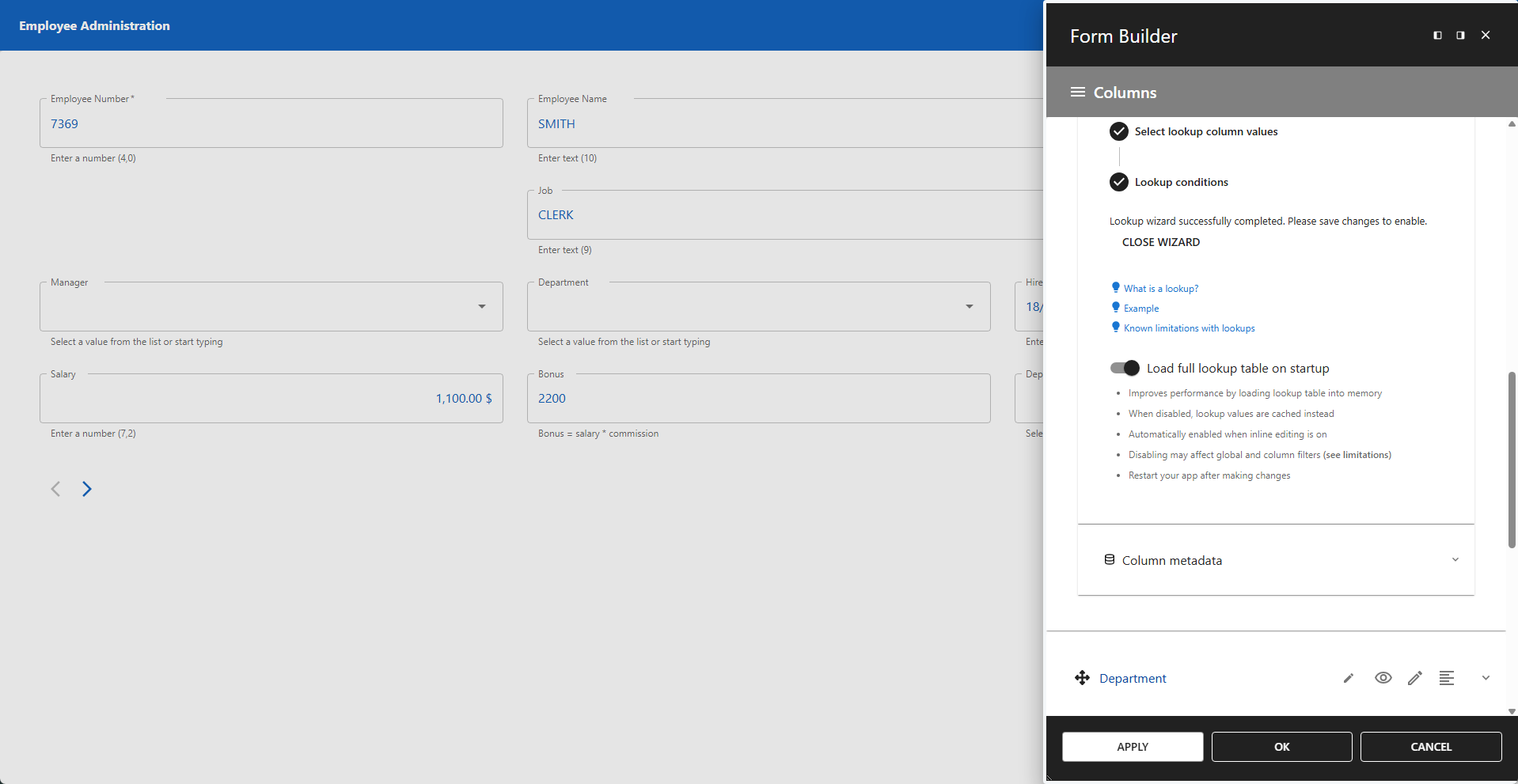
📌 Enable load full lookup table on startup to reduce server load.
📌 Reload your app if the lookup values do not appear immediately.
Final Form Layout
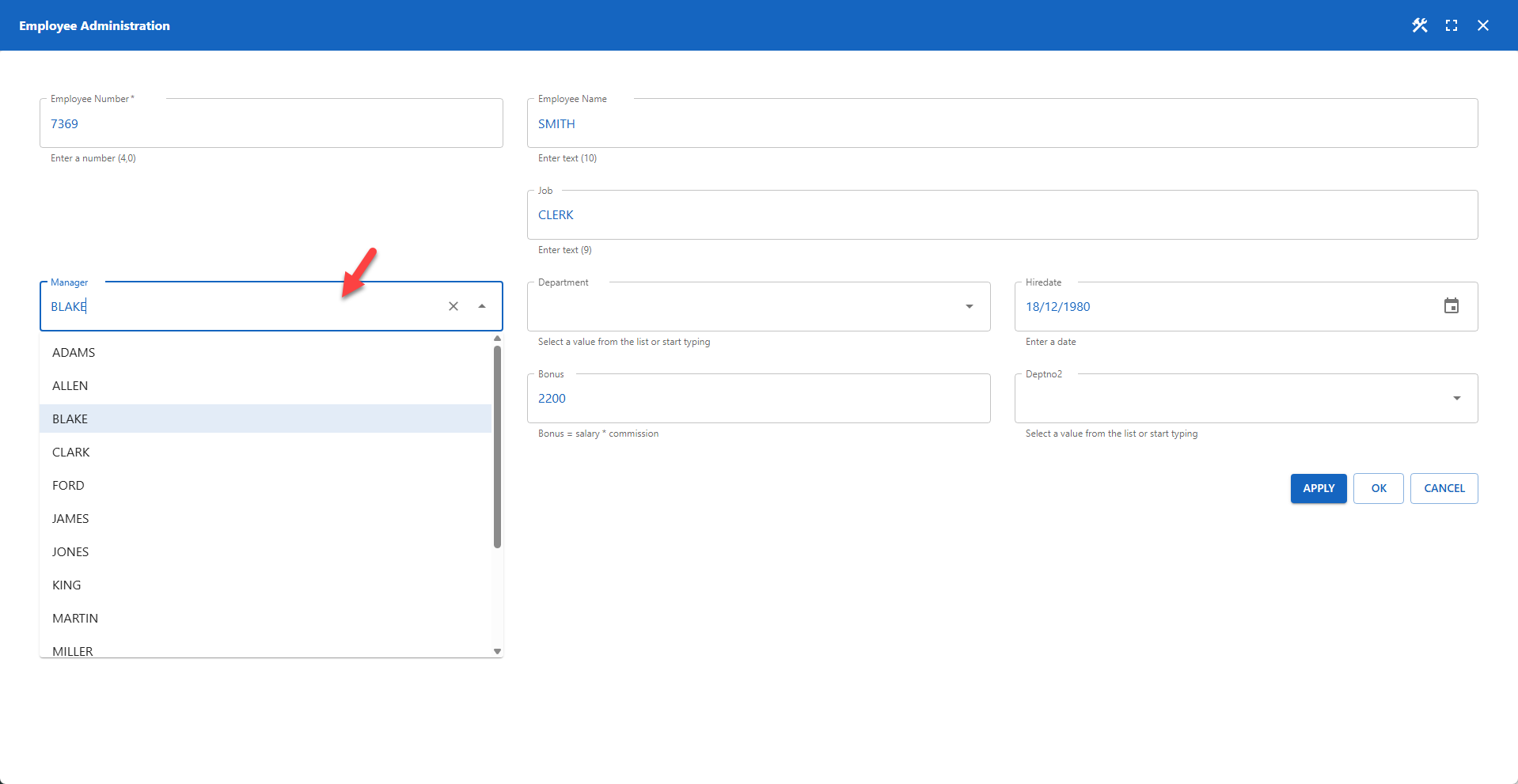
The screenshot below shows the result after applying the lookup. The manager field now contains a drop-down list with all allowed values for this column.
Lookup Styling
Because lookups are displayed in a popup, styling must be applied to two different element types:
- The lookup field displayed in the form.
- The list of values displayed in the popup.
✨ Example 1: Change Lookup Background Color
Styling the lookup field displayed in the form.
css
.pp-column-managed.countries .MuiInputBase-root {
    background-color: yellow;
}
✨ Example 2: Change Background Color of a Specific List Item
Styling the list of values displayed in the popup.
css
body .MuiAutocomplete-popper.countries .MuiAutocomplete-option[data-label="Austrialia"] {
  background-color: lightskyblue;
}
📌 Note that the selector in the second example starts with body, since list items are not part of the form and therefore cannot be scoped-styled. The first example targets the selector .pp-column-managed.countries, which is an element that belongs to the form and can therefore be scoped-styled.